
Key takeaways
- Package installs accept the system root account or any user with full sudo rights.
- Ubuntu locks root by default, so sign in with the sudo user created during setup.
- changepass.pl resets a Webmin password from SSH in a single command.
- Restrict the login page by IP, add 2FA and replace the self-signed certificate.
The Webmin login page is the first thing you see after installation and the last line of defence between the internet and a panel that can change anything on your server. Most sign-in trouble comes from a handful of predictable causes: the wrong account type, a locked root password, a browser that refuses the certificate, or a temporary block after a few typos. This guide explains how Webmin decides who may log in, how the first sign-in differs between installation methods, and how to recover when you are locked out.
How Webmin authenticates a user
Webmin keeps its own list of panel users in /etc/webmin/miniserv.users, with the modules each one may open stored in /etc/webmin/webmin.acl. A Webmin user can carry its own password, or it can be told to check the password against the operating system through PAM. That second option is what makes the first login on a fresh package install work without you ever setting a Webmin-specific password.
When you install the webmin package from the official repository, the installer creates a Webmin user called root that authenticates through Unix, and it also enables a rule that lets any system user with full sudo privileges sign in. In practice that means two accounts will work out of the box:
- the system
rootaccount, using its normal Linux password, if root has one; - any account that can run every command through
sudo, using that account's own password.
A tarball install behaves differently. When you run ./setup.sh, the script asks for a login name (it suggests admin) and a password, and that pair is stored as a normal Webmin user. There is no shared factory password in either case, and any website that lists a "default Webmin password" is describing someone else's server.
Your first sign-in, step by step
- Confirm the service is running over SSH:
systemctl status webmin --no-pager. - Open
https://your-server-ip:10000. Type thehttps://prefix yourself; a plainhttp://request is refused or redirected. - Accept the certificate warning for this first visit only. Webmin generated a self-signed certificate during installation, so the browser cannot verify who issued it.
- Enter the account that matches your installation method, as described above.
- After the dashboard loads, go straight to the security settings covered later in this guide.
If the page never loads, the problem is not your password. It is the port or the firewall, and the Webmin port guide walks through those checks.
Why root fails on Ubuntu
Ubuntu ships with the root password locked. The account exists, but it has no usable password, so PAM rejects every attempt to log in as root no matter what you type. This is deliberate: Ubuntu wants administrators to use a personal account with sudo instead of a shared superuser.
The fix is simply to log in with the user you created while installing Ubuntu, or with the default cloud user your provider set up, such as ubuntu on many images. That account is in the sudo group, and Webmin accepts it. If your cloud user signs in with an SSH key and has no password at all, give it one first:
sudo passwd ubuntu
Avoid the temptation to unlock root just for Webmin. A named sudo account leaves a clearer audit trail and is one less well-known username for attackers to guess.
Logging in on Rocky, AlmaLinux and RHEL
On the Red Hat family, root usually does have a password set during installation, so root works on the first try. Users in the wheel group, which grants sudo on these systems, can also sign in. If SELinux is enforcing and logins fail with no clear message, check /var/log/audit/audit.log for PAM denials before changing anything else; the stock packages are built to work with the default policy, so a denial normally points to a local customisation.
Resetting a forgotten Webmin password
Because Webmin stores its own user list, you can reset a panel password from SSH without touching the system password. The project ships a helper called changepass.pl for exactly this job. Its location depends on how Webmin was installed:
| Install method | Command |
|---|---|
| DEB package (Debian, Ubuntu) | sudo /usr/share/webmin/changepass.pl /etc/webmin root NEWPASS |
| RPM package (RHEL family) | sudo /usr/libexec/webmin/changepass.pl /etc/webmin root NEWPASS |
| Tarball or source ZIP | sudo /usr/local/webmin/changepass.pl /etc/webmin admin NEWPASS |
Replace root or admin with the Webmin username you want to change. Note that if that Webmin user is set to authenticate through Unix, the tool sets a Webmin-only password that takes over from the system one. Once you are back in, open Webmin → Webmin Users and switch the account back to Unix authentication if you prefer that model.
Put a leading space before the command, or clear your shell history afterwards, so the new password does not stay in ~/.bash_history.
When Webmin blocks your IP
Webmin protects its login page with a simple brute-force filter. After a configurable number of failed attempts from one address, that address is refused for a set number of seconds, and the event is written to /var/webmin/miniserv.error. If you mistyped a password several times, you will see a message that your host is blocked.
You have three options. Wait until the block expires. Sign in from a different, trusted address. Or restart the service from SSH, which clears the in-memory list:
sudo systemctl restart webmin
You can tune the thresholds under Webmin → Webmin Configuration → Authentication. Keep the protection switched on; shortening it only helps attackers.
Sessions, timeouts and "remember me"
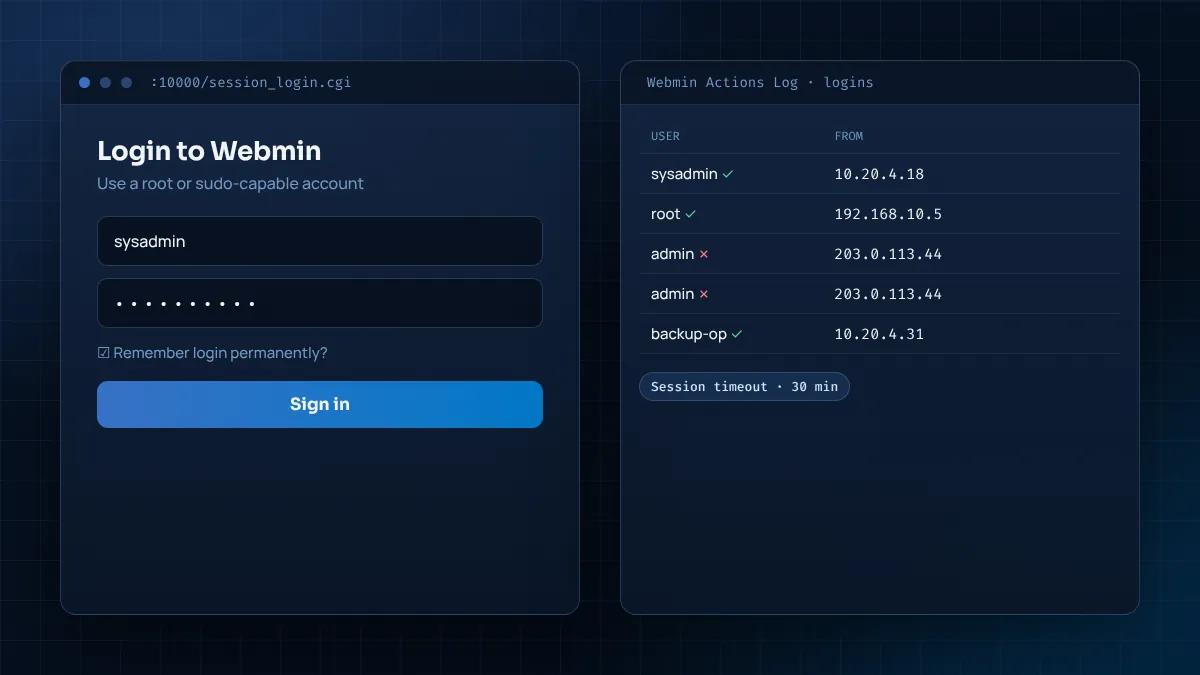
Webmin uses a session cookie after a successful login. The Authentication page lets you log users out after a period of inactivity, which is worth setting to something like 30 minutes on any server reachable from outside your office. The login form can also offer a "remember login permanently" checkbox. On a shared or travelling laptop, leave it unticked; a stolen browser profile should not be a stolen server.
If you are logged out repeatedly a few seconds after signing in, the browser is usually refusing the session cookie. That happens when you mix hostnames and IP addresses, or when a reverse proxy rewrites the host header. Use one consistent address, and if you run Webmin behind Nginx or Apache, set the trusted referrers and proxy options under Webmin Configuration to the public hostname.
Securing the Webmin login page
Anyone who can reach the login form can try passwords, so the most effective protection is to make sure strangers never see it. Work through these settings in order:
- IP access control. Under Webmin Configuration → IP Access Control, choose "Only allow from listed addresses" and add your office range, your home address or your VPN subnet. Mirror the same rule in ufw or firewalld so blocked traffic never reaches Webmin at all.
- Two-factor authentication. Webmin Configuration → Two-Factor Authentication supports time-based one-time passwords from apps such as Google Authenticator or any TOTP app. It needs the
Authen::OATHPerl module, which Webmin can install for you. Each user then enrols from Webmin Users. - A trusted certificate. Once the server has a DNS name, request a Let's Encrypt certificate from SSL Encryption. A valid padlock trains your team to notice when something is wrong.
- Named accounts. Create a Webmin user for each administrator and grant only the modules they need. The action log then tells you who did what.
- Optional port change. Moving off 10000 does not stop a determined attacker, but it removes most automated noise from your logs.
Reading the login logs
Two places tell you what happened at the login page. The miniserv error log, /var/webmin/miniserv.error, records invalid logins and host blocks with timestamps and source addresses. The Webmin action log, visible under Webmin → Webmin Actions Log, records successful logins and every change made afterwards, provided logging is enabled in Webmin Configuration → Logging.
sudo tail -f /var/webmin/miniserv.error
A steady stream of failed logins for admin or root from addresses you do not recognise is a strong sign the panel is reachable from the open internet. That is your cue to tighten IP access control rather than to rely on password strength alone.
Giving colleagues their own login
Sharing the root login between several people makes it impossible to tell who changed what. Webmin solves this with its own user list. Open Webmin → Webmin Users → Create a new Webmin user, choose a username, set the password type to Unix authentication if the person already has a system account, and then tick only the modules they need. A web developer might get Apache Webserver, MySQL Database Server and the file manager limited to /var/www; a support technician might get System Logs and Bootup and Shutdown. Many modules also have their own access control pages, so you can, for example, allow someone to restart Apache but not edit its configuration. Because each person signs in separately, the action log shows a name beside every change.
Frequently asked questions
Is there a default Webmin username and password?
No. Package installs use the system root account or any full sudo user. Tarball installs use whatever login you entered during setup.sh.
Can I log in to Webmin with an SSH key?
Not directly. Webmin uses passwords, optionally with two-factor tokens. Keep SSH key logins for the shell and use a strong password plus 2FA for Webmin.
Why does Webmin say my login failed when the password is right?
On Ubuntu you are probably using root, which has no password. Elsewhere, check that the account has full sudo rights and that your IP is not temporarily blocked.
How do I log out of every Webmin session?
Restart the service with sudo systemctl restart webmin. All existing sessions must sign in again.
Quick login checklist
- Use
https://and the correct port. - Use root on RHEL-style systems, or your sudo user on Ubuntu.
- Tarball install? Use the login name you chose during
setup.sh. - Locked out? Reset with
changepass.pl, then restart Webmin. - Blocked? Wait, use another trusted IP or restart the service.
- Once in, add IP restrictions, 2FA and a real certificate before doing anything else.
With those pieces in place, the Webmin login becomes a routine step rather than a weak point. For the network side of the same problem, continue with the default port explainer, and if you are still deciding how to install, the download guide compares every route.