
Key takeaways
- The Webmin project does not publish an official Docker image.
- Inside a container, Webmin manages that container, not the Docker host.
- Build your own image from the official repository packages and persist /etc/webmin.
- For managing a real server, install Webmin on the host or use a VM.
"Webmin Docker" is a popular search, and it usually hides one of two goals. Some people want to try Webmin without touching a real server. Others want to manage a Docker host, or the containers on it, through Webmin. Containers suit the first goal well. They fit the second goal poorly, and understanding why will save you from building something that looks right but cannot do its job. This guide explains how Webmin behaves inside a container, shows how to build a clean image from the official packages, and points out when a different approach makes more sense.
What Webmin manages inside a container
Webmin edits files under /etc, reads process tables, controls services and talks to package managers. In a container, all of those belong to the container. A user you add in Webmin is a user inside the container's /etc/passwd. A package you install lands in the container's filesystem. A firewall rule you write applies to the container's network namespace, if it applies at all.
None of that touches the Docker host. So a containerised Webmin is a good way to:
- explore the interface and its modules safely;
- test a configuration recipe before applying it to real servers;
- manage a single service that lives in the same container, such as a Samba or BIND appliance;
- develop or test Webmin modules.
It is not a way to administer the host's disks, firewall, kernel or other containers. You can bind-mount host paths or grant extra privileges to blur that line, but each step weakens the isolation that made containers attractive. If host management is the goal, install Webmin on the host itself.
Is there an official image?
The Webmin project publishes DEB and RPM packages, tarballs and the GitHub source, but not an official Docker image. Images on Docker Hub that carry the name are community builds. Some are well maintained; many are years out of date. Because Webmin runs with root privileges, the safest option is to build your own image from the official packages, so you know exactly what is inside and can rebuild it whenever a new release appears.
A minimal Dockerfile
The image below starts from Debian, adds the official repository using the project's setup script, installs Webmin and runs its built-in web server in the foreground so Docker can supervise it.
FROM debian:12-slim

ENV DEBIAN_FRONTEND=noninteractive
RUN apt-get update \
 && apt-get install -y --no-install-recommends curl ca-certificates gnupg \
 && curl -o /tmp/webmin-setup-repo.sh \
      https://raw.githubusercontent.com/webmin/webmin/master/webmin-setup-repo.sh \
 && yes | sh /tmp/webmin-setup-repo.sh \
 && apt-get install -y --install-recommends webmin \
 && rm -rf /var/lib/apt/lists/* /tmp/webmin-setup-repo.sh

EXPOSE 10000
CMD ["/usr/share/webmin/miniserv.pl", "--nofork", "/etc/webmin/miniserv.conf"]
A few notes on the choices:
- The setup script is interactive. Piping
yesanswers its confirmation prompt during the build. Read the script once so you know what you are agreeing to. - There is no systemd in the container. Webmin's own server,
miniserv.pl, is started directly. Check/etc/webmin/startin your built image to confirm the exact launch line for your version, since that script is what the service unit normally calls. - Debian rather than Ubuntu keeps the image small, but the same approach works with
ubuntu:24.04or a Rocky Linux base usingdnf.
Setting the login password
A container has no interactive installer, and the root account inside it has no password. Set a Webmin password with the helper that ships with the package, either in the Dockerfile or once the container is running:
docker exec -it webmin-lab /usr/share/webmin/changepass.pl /etc/webmin root 'a-long-unique-password'
Avoid baking a password into the image itself. Anyone who can pull the image could read it from the layer history.
Compose file with persistent volumes
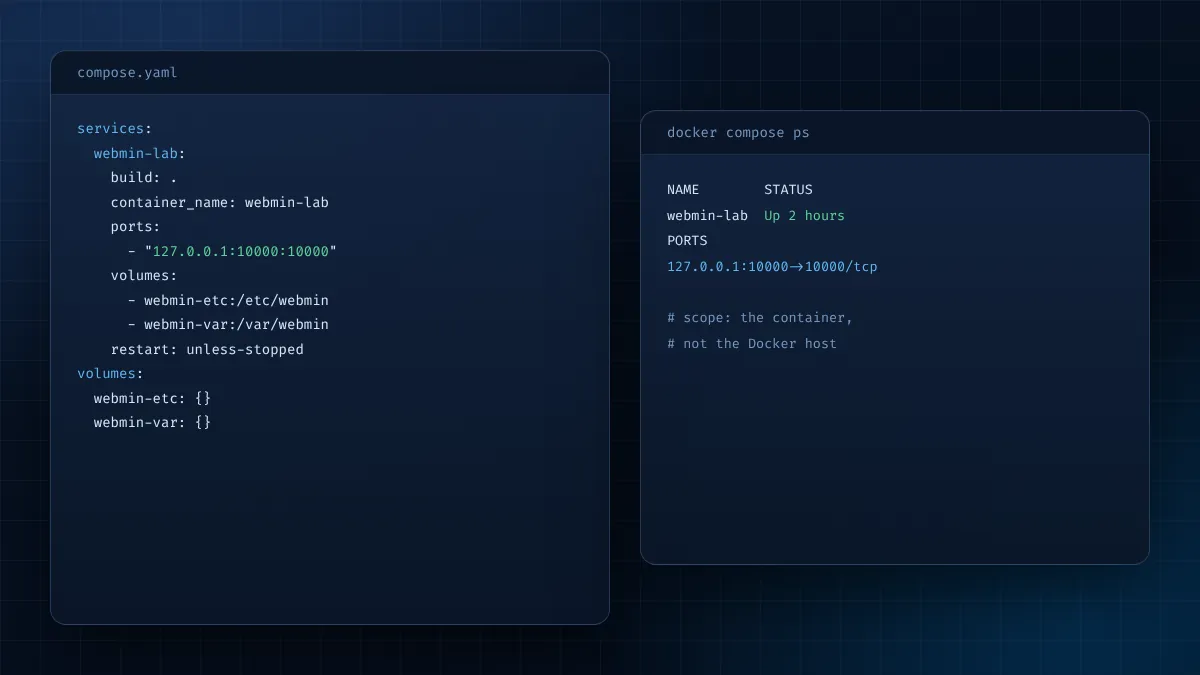
Containers are disposable, but your Webmin settings should not be. Store /etc/webmin and /var/webmin in named volumes so they survive a rebuild:
services:
  webmin-lab:
    build: .
    container_name: webmin-lab
    ports:
      - "127.0.0.1:10000:10000"
    volumes:
      - webmin-etc:/etc/webmin
      - webmin-var:/var/webmin
    restart: unless-stopped

volumes:
  webmin-etc: {}
  webmin-var: {}
Notice the port mapping: 127.0.0.1:10000:10000 publishes Webmin only on the host's loopback interface. Reach it through an SSH tunnel such as ssh -L 10000:127.0.0.1:10000 user@docker-host, then browse to https://localhost:10000. Publishing straight to 0.0.0.0 is risky, because Docker's port publishing can bypass host firewall rules managed by ufw.
One caution about volumes: when you upgrade to a newer Webmin package in a rebuilt image, the old configuration in the volume is kept. That is usually what you want, but if the container behaves oddly after an upgrade, compare the volume's miniserv.conf with a fresh one.
Build, run and check
docker compose up -d --build
docker compose ps
docker compose logs -f webmin-lab
When the log shows miniserv listening, open the tunnel and sign in as root with the password you set.
What about managing Docker from Webmin?
If your real aim is to manage containers through a web interface, you have better options than putting Webmin inside one:
- Install Webmin on the Docker host. You then manage the host's users, disks, firewall and updates normally, and use the Terminal module to run
dockercommands from the browser. - Check for container modules in your version. After installing Docker on the host, click Refresh Modules and look under Servers and Un-used Modules. If your Webmin release offers a container module, it will appear there; if not, the Terminal module covers everyday
dockercommands. - Pair Webmin with a dedicated container tool for heavy container work, and let Webmin handle the operating system around it.
Security checklist for containerised Webmin
- Do not run the container with
--privilegedunless you fully understand why it is needed. - Do not mount the Docker socket into a Webmin container; that grants control of every container on the host.
- Publish the port on
127.0.0.1and reach it through SSH or a VPN. - Rebuild the image regularly so new Webmin and Debian security fixes are included.
- Replace the self-signed certificate if the container is used by more than one person.
When a small VM is the better choice
For a realistic preview of Webmin, a virtual machine is often simpler than a container. A VM has systemd, a real init process, its own firewall and disks, so every module behaves exactly as it would on a production server. The Webmin demo lab guide builds one in a few minutes with snapshots for easy rollback.
Adding a health check
Docker can restart a container automatically, but only if it knows the service has failed. A health check that requests the login page is enough. Because Webmin uses a self-signed certificate inside the container, tell curl to skip verification for this local probe only:
HEALTHCHECK --interval=60s --timeout=10s --retries=3 \
  CMD curl -fsk https://127.0.0.1:10000/ -o /dev/null || exit 1
Add curl to the runtime image if you strip it out during the build. docker compose ps will then show the container as healthy or unhealthy, and orchestrators can act on it.
Keeping the image up to date
An image built once and left alone slowly drifts away from current security fixes. Rebuild on a schedule, for example monthly and whenever a new Webmin release appears, with docker compose build --pull --no-cache followed by docker compose up -d. Because configuration lives in the named volumes, the rebuilt container picks up where the old one left off. Avoid using Webmin's own Upgrade Webmin page inside the container; changes made that way are lost on the next rebuild, and the image and the running container stop matching.
Whichever base you choose, pin it to a specific major version tag rather than latest, so a rebuild never jumps to a new distribution release without you noticing.
Using a Rocky Linux base instead
If your servers run the Red Hat family, build the lab image on the same base so module behaviour matches. Start from rockylinux:9, install curl with dnf, run the same repository script and install the package with dnf install -y webmin. On RPM systems the program directory is /usr/libexec/webmin, so adjust the start command and the changepass.pl path accordingly. Everything else, including the volumes and the loopback-only port, stays the same.
Frequently asked questions
Is there an official Webmin Docker image?
No. The project publishes packages and tarballs. Build your own image from the official repository.
Can Webmin in a container manage the Docker host?
Not in any safe way. It manages the container it runs in. Install Webmin on the host to manage the host.
Which port should I publish?
Map container port 10000, preferably to 127.0.0.1 on the host, and reach it through an SSH tunnel or VPN.
How do I keep settings after rebuilding?
Store /etc/webmin and /var/webmin in named volumes, as in the compose example.
Summary
Webmin and Docker can work together as long as expectations are clear. A container is a fine sandbox for learning the interface or running a self-contained service, built from the official packages with persistent volumes and a loopback-only port. For managing an actual machine, Webmin belongs on that machine. Start with the download guide to pick the right package source, and the port guide for safe exposure.