
Key takeaways
- Current Webmin releases target Linux and other Unix-like systems, not Windows.
- From Windows, the most common setup is simply managing a Linux server in a browser.
- WSL2 with systemd enabled runs Webmin for learning and local testing.
- A Hyper-V or VirtualBox VM gives the most realistic local environment.
People search for "Webmin for Windows" for two different reasons. Some want to manage Windows Server through Webmin. Others work on a Windows PC and want to use Webmin on it. The short answer to the first is no: current Webmin releases are built for Linux, the BSDs, macOS and other Unix-like systems, and they administer those systems. The answer to the second is a confident yes, through one of three well-tested routes. This guide explains each one, with commands, so you can pick the right fit.
Did Webmin ever support Windows?
Very old Webmin 1.x releases had a limited Windows port that covered a handful of modules and relied on a separately installed Perl distribution. It never managed Windows the way Webmin manages Linux, and it is not part of the current platform list. The official download page today lists DEB and RPM packages for Linux, a package for Solaris and a tarball for FreeBSD, macOS and other Unix systems. If you find an installer labelled "Webmin for Windows" on a download portal, treat it with suspicion; it is not from the project.
For managing Windows Server itself, use tools designed for it, such as Windows Admin Center or PowerShell remoting. Webmin's strength is the Unix side of a mixed environment.
Three ways to use Webmin from Windows
| Option | Webmin runs on | Best for | Effort |
|---|---|---|---|
| Browser to a Linux server | Remote Linux machine | Everyday administration | Lowest |
| WSL2 with systemd | Ubuntu inside Windows | Learning, quick local tests | Low |
| Hyper-V or VirtualBox VM | Full Linux VM on the PC | Realistic testing, training labs | Medium |
Option 1: manage Linux servers from a Windows browser
This is how most Windows users work with Webmin, and it needs nothing installed on Windows at all. Webmin runs on the Linux server; you open https://server-ip:10000 in Edge, Chrome or Firefox and administer it from there. Install Webmin on the server using the Ubuntu guide or the download guide for other distributions.
A few Windows-specific tips make this smoother:
- Use the built-in SSH client in PowerShell or Windows Terminal (
ssh user@server) for the occasional command-line fix, such as restarting Webmin. - Tunnel instead of exposing the port.
ssh -L 10000:127.0.0.1:10000 user@serverlets you browse tohttps://localhost:10000while port 10000 stays closed on the server's public interface. - Trust the certificate properly. Rather than clicking through warnings, give the server a Let's Encrypt certificate from Webmin's SSL Encryption page.
- Upload files through the browser. Webmin's file manager handles uploads and downloads, so you rarely need a separate SFTP client.
Option 2: Webmin inside WSL2
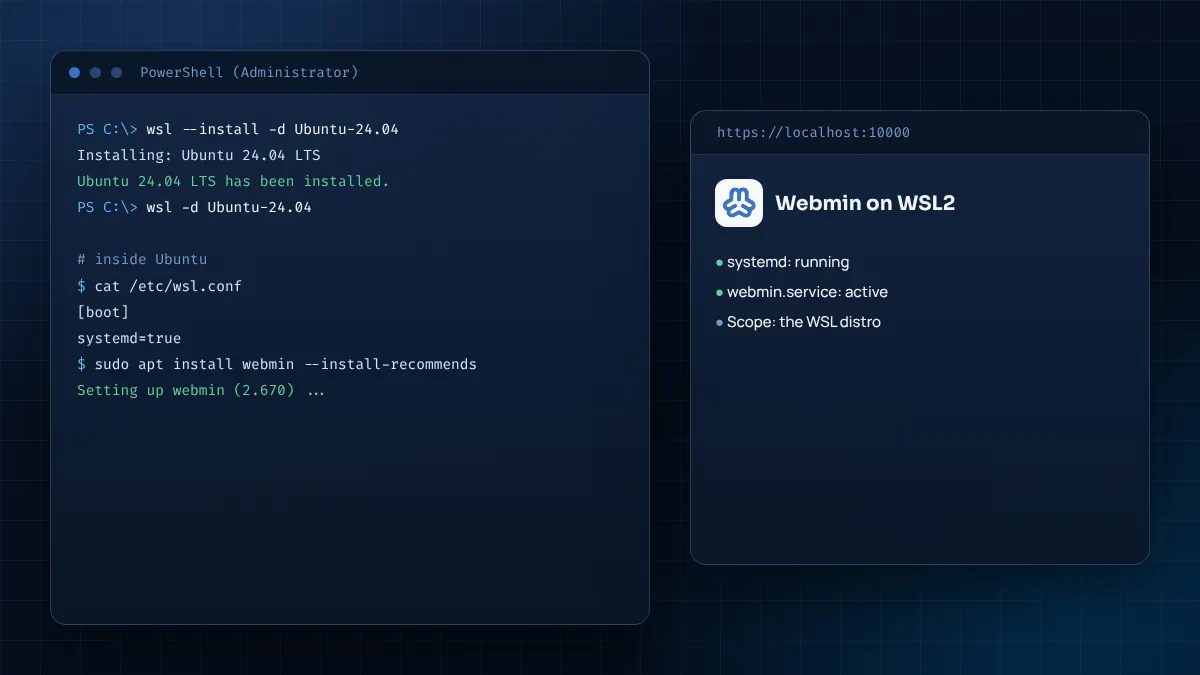
The Windows Subsystem for Linux runs a real Linux kernel in a lightweight VM. With systemd enabled, Webmin installs and runs exactly as on a normal Ubuntu machine. It is ideal for learning the interface on a laptop.
Install Ubuntu in WSL2
In PowerShell running as administrator:
wsl --install -d Ubuntu-24.04
Restart if prompted, open Ubuntu from the Start menu and create a user with a password. That user will be your Webmin login.
Enable systemd
Current WSL releases support systemd, which Webmin's service relies on. Inside Ubuntu, create or edit /etc/wsl.conf:
[boot]
systemd=true
Then from PowerShell restart the distribution so the setting takes effect:
wsl --shutdown
Open Ubuntu again and confirm with systemctl is-system-running; "running" or "degraded" both mean systemd is active.
Install Webmin
sudo apt update && sudo apt install -y curl
curl -o webmin-setup-repo.sh https://raw.githubusercontent.com/webmin/webmin/master/webmin-setup-repo.sh
sudo sh webmin-setup-repo.sh
sudo apt-get install webmin --install-recommends
Open https://localhost:10000 in your Windows browser. WSL2 forwards localhost ports to Windows by default, so no extra configuration is needed. Sign in with your WSL user and password.
What Webmin manages in WSL
Remember the scope: Webmin is administering the Ubuntu environment inside WSL, not Windows. Users, packages, cron jobs, Apache, MySQL and the file manager all work. Modules for disks, partitions, network interfaces and boot behave differently or have nothing to manage, because WSL handles those parts for you. That makes WSL perfect for learning, but not a stand-in for a real server.
Option 3: a Linux VM in Hyper-V or VirtualBox
When you need everything to behave like production, including disks, firewall, network interfaces and reboots, run a full Linux virtual machine.
- Hyper-V is built into Windows 10 and 11 Pro, Enterprise and Education. Enable it under Turn Windows features on or off, then use Quick Create or attach an Ubuntu Server ISO. VirtualBox is a free alternative that also runs on Home editions.
- Give the VM 2 GB of RAM, 2 vCPUs and a 20 GB disk.
- Install Ubuntu Server, Debian or Rocky Linux, then install Webmin from the repository.
- Use an internal or host-only network so the VM is reachable from your PC but not from your LAN, and take snapshots before risky changes.
The Webmin demo lab guide builds exactly this kind of VM and lists ten exercises to run in it.
Which option should you choose?
- You already have Linux servers: Option 1. Nothing to install locally.
- You want to learn Webmin on your laptop this afternoon: Option 2, WSL2.
- You are planning a production rollout or training others: Option 3, a full VM with snapshots.
Troubleshooting on Windows
- localhost:10000 does not load from Windows (WSL). Check
systemctl status webmininside Ubuntu. If systemd is not running, recheck/etc/wsl.confand runwsl --shutdown. - Login rejected (WSL or Ubuntu VM). Use your Ubuntu user, not root. Root has no password on Ubuntu.
- VM is unreachable. Confirm the VM's IP with
ip a, make sure the network adapter is host-only or internal, and allow port 10000 in the VM's firewall. - Browser blocks the page. The self-signed certificate triggers a warning. For a local lab, proceeding is fine; for anything shared, install a trusted certificate.
Webmin in a mixed Windows and Linux office
Webmin is often found in offices that run mostly Windows desktops with a few Linux servers behind them. In that setting it fills useful gaps. The Samba Windows File Sharing module manages shares that Windows PCs map as network drives, including permissions and user mappings. The Users and Groups module keeps Linux accounts in step with staff changes. The System and Server Status module can watch the Linux machines and email the IT team when a service stops. The administrator never needs to leave Windows: everything happens in the browser, with an SSH session in Windows Terminal for the rare command-line task.
Reaching a WSL Webmin from other devices
By default, WSL2 makes Webmin available at localhost on your own PC only, which is the safest setting for a learning environment. If you need another device on your network to reach it, newer WSL versions offer a mirrored networking mode, and older ones need a Windows port proxy rule plus a Windows Defender Firewall exception. For anything beyond a quick test, use a proper Linux VM or server instead; a laptop that sleeps, roams between networks and runs your email is not a good home for a shared admin panel.
Windows on ARM
On ARM-based Windows laptops, WSL2 installs the ARM64 build of Ubuntu, and Hyper-V runs ARM64 Linux guests. Webmin is written in Perl and is not tied to one processor architecture, so the same repository steps work. Make sure you download an ARM64 ISO when creating a VM.
None of these options require changes to Webmin itself; the Linux side is configured exactly as on any other server, which keeps your documentation consistent.
Whichever tools you use, keep the admin workflow on Windows simple and repeatable: one bookmark per server, one password manager entry with its 2FA secret, and an SSH profile in Windows Terminal for each host. That small amount of structure makes it far easier to hand the job to a colleague when you are away.
Handy Windows tools alongside Webmin
- Windows Terminal for SSH sessions to your servers, with tabs for each host.
- A password manager that supports TOTP codes, so your Webmin two-factor tokens live with the account details.
- WinSCP or the built-in
scpcommand for large transfers that are awkward through a browser upload. - Your browser's profile feature to keep admin sessions separate from everyday browsing.
Frequently asked questions
Can Webmin manage Windows Server?
No. Webmin manages Linux and other Unix-like systems. Use Windows-specific tools for Windows Server.
Is there a Webmin installer for Windows?
Not for current releases. Installers labelled that way on download portals are not from the project.
Does Webmin work in WSL2?
Yes, once systemd is enabled in /etc/wsl.conf. It manages the Linux environment inside WSL.
Which browser works best for Webmin on Windows?
Any current version of Edge, Chrome or Firefox works well.
Summary
Webmin for Windows is really about using Webmin from Windows. Current releases do not install natively on Windows, but a browser pointed at a Linux server covers everyday work, WSL2 with systemd gives you a quick local playground, and a Hyper-V or VirtualBox VM provides a realistic lab. Whichever you choose, the sign-in rules in the login guide and the network advice in the default port explainer apply unchanged.